
Logstach n’est pas vraiment stable ( Java & Mémoire ne font pas bon ménage ) sur le Raspberry, et j’ai du mal à savoir quel est le problème. Je vais donc le remplacer par Filebeat. La première étape est l’installation de GO :
$ sudo apt-get update
$ sudo apt-get install golang
$ sudo apt-get install git
$ sudo mkdir /go/
$ sudo mkdir /go/src
$ sudo chown -R pi.pi /go/
$ export GOPATH=/go/src
$ export GOPATH=$HOME/go
$ export PATH=/usr/local/go/bin:$PATH:$GOPATH/bin
$ go get github.com/elastic/beats
Cela bloque …, je lance donc le plan B :
Pour faire suite à l’article : https://www.cyber-neurones.org/2018/10/raspberry-rsyslog-centralisation-des-logs/ .
(Pour l’instant c’est tombé en marche … le Java c’est pas mon truc).
Je vais donc installer ELK : E sur le Raspberry n°4 / L sur le Raspberry n°3 / K sur le Raspberry n°5. A noter que j’avais essayé de tout mettre sur le même : https://www.cyber-neurones.org/2018/09/osmc-raspberry-ajout-de-elk-elasticsearch-logstash-kibana-beats-nginx/ . Mais régulièrement il fallait relancer à cause de la consommation mémoire ….
| RASP3 | a020d3 | ARMv7 Processor rev 4 (v7l) | 949452 | 4.14.50-v7+ | 192.168.0.71 | Rsyslog Server / Logstash | OK |
|---|---|---|---|---|---|---|---|
| RASP4 | a020d3 | ARMv7 Processor rev 4 (v7l) | 949452 | 4.14.50-v7+ | 192.168.0.72 | Elasticsearch | OK |
| RASP5 | a020d3 | ARMv7 Processor rev 4 (v7l) | 949452 | 4.14.50-v7+ | 192.168.0.73 | Kibana | OK |
Sur le RASP n°4 : Installation de Elasticsearch :
Voici le mac, en version 10.13.16 :
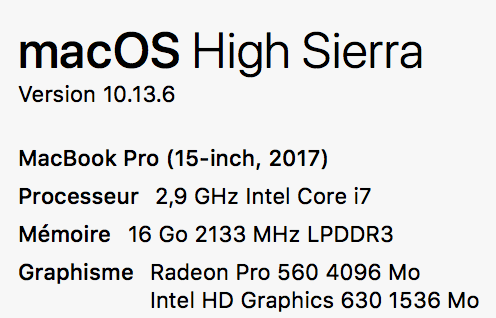
A noter qu’il y a 16 Go de RAM, avec ELK c’est minimum 6 Go …. donc si on a 8 Go, je pense que c’est pas la peine. Ensuite on peut toujours faire toujours via un Raspberry avec des configuration minimale, mais j’observe que quand il a moins de 6 Go il fonctionne nettement moins bien.
#/usr/bin/ruby -e "$(curl -fsSL https://raw.githubusercontent.com/Homebrew/install/master/install)"
==> This script will install:
/usr/local/bin/brew
/usr/local/share/doc/homebrew
/usr/local/share/man/man1/brew.1
/usr/local/share/zsh/site-functions/_brew
/usr/local/etc/bash_completion.d/brew
/usr/local/Homebrew
==> The following new directories will be created:
/usr/local/Caskroom

Press RETURN to continue or any other key to abort
....
==> Downloading and installing Homebrew...
remote: Enumerating objects: 3965, done.
remote: Counting objects: 100% (3965/3965), done.
remote: Compressing objects: 100% (23/23), done.
remote: Total 13167 (delta 3945), reused 3960 (delta 3942), pack-reused 9202
Receiving objects: 100% (13167/13167), 2.93 MiB | 910.00 KiB/s, done.
Resolving deltas: 100% (10207/10207), completed with 870 local objects.
From https://github.com/Homebrew/brew
....
==> Renamed Formulae
cdiff -> ydiff                         geth -> ethereum                       php56 -> php@5.6                       php71 -> php@7.1                       saltstack -> salt
crystal-lang -> crystal                latexila -> gnome-latex                php70 -> php@7.0                       rebar@3 -> rebar3                      wpcli-completion -> wp-cli-completion
==> Deleted Formulae
arm                        boot2docker                ghc@8.0                    i3status                   mal4s                      nazghul                    submarine
artifactory-cli-go         boot2docker-completion     gnupg@2.0                  llvm@3.7                   mediatomb                  node@4                     ufoai
aws-cloudsearch            dirmngr                    gpg-agent                  llvm@3.8                   mimetic                    picolisp                   voltdb
bokken                     ecj                        i3                         luciddb                    monotone                   python3                    wry
==> Installation successful!

==> Homebrew has enabled anonymous aggregate formulae and cask analytics.
Read the analytics documentation (and how to opt-out) here:
  https://docs.brew.sh/Analytics.html

==> Homebrew is run entirely by unpaid volunteers. Please consider donating:
  https://github.com/Homebrew/brew#donations
==> Next steps:
- Run `brew help` to get started
- Further documentation:
    https://docs.brew.sh

#brew update
Already up-to-date.
En résumé deux alertes de sécurité qu’il faut permettre :
Le but est d’installer ELK sur un OSMC/Raspberry déjà fonctionnel … afin de ne pas acheter un nouveau Raspberry Pi …
Pour l’installation de OSMC voir : https://www.cyber-neurones.org/2016/09/installation-un-media-center-avec-osmc-sur-un-raspberry-pi-3-model-b/ . “Installation un media-center avec OSMC sur un Raspberry Pi 3 Model B” ( fait le 30/09/2016) .
La première étape est d’ouvrir un console, puis faire un SSH : sur l’IP avec le login osmc et le mot de passe osmc ( si pas changé ) :