Ma version de VirtualBox: 6.1.18 et ma version de Windows : Windows 10 Entreprise OS Build 18363.1379 .
J’ai du faire ceci :
1-Lancer un prompt en Administrateur ;
2-Lancer la commande :
bcdedit /set hypervisorlaunchtype off3-Faire un reboot :
shutdown -s -t 2Voici les logs de Virtual Box qui plantait:
00:00:03.654980 Full Name: "Intel(R) Core(TM) i7-9850H CPU @ 2.60GHz"
00:00:03.654981 TLB 2/4M Instr/Uni: res0 0 entries
00:00:03.654981 TLB 2/4M Data: res0 0 entries
00:00:03.654982 TLB 4K Instr/Uni: res0 0 entries
00:00:03.654982 TLB 4K Data: res0 0 entries
00:00:03.654982 L1 Instr Cache Line Size: 0 bytes
00:00:03.654983 L1 Instr Cache Lines Per Tag: 0
00:00:03.654983 L1 Instr Cache Associativity: res0
00:00:03.654983 L1 Instr Cache Size: 0 KB
00:00:03.654983 L1 Data Cache Line Size: 0 bytes
00:00:03.654984 L1 Data Cache Lines Per Tag: 0
00:00:03.654984 L1 Data Cache Associativity: res0
00:00:03.654984 L1 Data Cache Size: 0 KB
00:00:03.654985 L2 TLB 2/4M Instr/Uni: off 0 entries
00:00:03.654985 L2 TLB 2/4M Data: off 0 entries
00:00:03.654985 L2 TLB 4K Instr/Uni: off 0 entries
00:00:03.654986 L2 TLB 4K Data: off 0 entries
00:00:03.654986 L2 Cache Line Size: 0 bytes
00:00:03.654987 L2 Cache Lines Per Tag: 0
00:00:03.654987 L2 Cache Associativity: off
00:00:03.654987 L2 Cache Size: 0 KB
00:00:03.654988 TS - Temperature Sensor = 0 (0)
00:00:03.654989 FID - Frequency ID control = 0 (0)
00:00:03.654990 VID - Voltage ID control = 0 (0)
00:00:03.654990 TscInvariant - Invariant Time Stamp Counter = 1 (1)
00:00:03.654991 CBP - Core Performance Boost = 0 (0)
00:00:03.654992 EffFreqRO - Read-only Effective Frequency Interface = 0 (0)
00:00:03.654992 ProcFdbkIf - Processor Feedback Interface = 0 (0)
00:00:03.654993 ProcPwrRep - Core power reporting interface support = 0 (0)
00:00:03.654994 Physical Address Width: 39 bits
00:00:03.654994 Virtual Address Width: 48 bits
00:00:03.654994 Guest Physical Address Width: 0 bits
00:00:03.654995 Physical Core Count: 1
00:00:03.654996
00:00:03.654996 ******************** End of CPUID dump **********************
0:00:03.655008 VMEmt: Halt method global1 (5)
00:00:03.655098 VMEmt: HaltedGlobal1 config: cNsSpinBlockThresholdCfg=50000
00:00:03.655176 Changing the VM state from 'CREATING' to 'CREATED'
00:00:03.656076 Changing the VM state from 'CREATED' to 'POWERING_ON'
00:00:03.656236 AIOMgr: Endpoints without assigned bandwidth groups:
00:00:03.656252 AIOMgr: E:\LIVECD\OracleLinux-R8-U3-x86_64-dvd.iso
00:00:03.656258 AIOMgr: E:\Oracle Linux 8.3\Oracle Linux 8.3.vdi
00:00:03.656697 Changing the VM state from 'POWERING_ON' to 'RUNNING'
00:00:03.656717 Console: Machine state changed to 'Running'
00:00:03.658838 VMMDev: Guest Log: BIOS: VirtualBox 6.1.18
00:00:03.659012 PCI: Setting up resources and interrupts
00:00:03.664606 ERROR [COM]: aRC=VBOX_E_VM_ERROR (0x80bb0003) aIID={4680b2de-8690-11e9-b83d-5719e53cf1de} aComponent={DisplayWrap} aText={Could not take a screenshot (VERR_NOT_SUPPORTED)}, preserve=false aResultDetail=-37
00:00:03.690437 PIT: mode=2 count=0x10000 (65536) - 18.20 Hz (ch=0)
00:00:03.706765 Display::i_handleDisplayResize: uScreenId=0 pvVRAM=0000000000000000 w=720 h=400 bpp=0 cbLine=0x0 flags=0x0 origin=0,0
00:00:03.709342 VMMDev: Guest Log: CPUID EDX: 0x178bfbff
00:00:03.709485 PIIX3 ATA: Ctl#0: RESET, DevSel=0 AIOIf=0 CmdIf0=0x00 (-1 usec ago) CmdIf1=0x00 (-1 usec ago)
00:00:03.709529 PIIX3 ATA: Ctl#0: finished processing RESET
00:00:03.712679 AHCI#0: Reset the HBA
00:00:03.712694 VD#0: Cancelling all active requests
00:00:03.712851 AHCI#0: Port 0 reset
00:00:03.712929 VD#0: Cancelling all active requests
00:00:03.713609 VMMDev: Guest Log: BIOS: AHCI 0-P#0: PCHS=16383/16/63 LCHS=1024/255/63 0x000000000a36f580 sectors
00:00:03.717731 PIT: mode=2 count=0x48d3 (18643) - 64.00 Hz (ch=0)
00:00:03.745810 Display::i_handleDisplayResize: uScreenId=0 pvVRAM=000000000f300000 w=640 h=480 bpp=32 cbLine=0xA00 flags=0x0 origin=0,0
00:00:04.157989 GUI: UIMachineViewScale::resendSizeHint: Restoring guest size-hint for screen 0 to 800x600
00:00:04.158041 VMMDev: SetVideoModeHint: Got a video mode hint (800x600x32)@(0x0),(1;0) at 0
00:00:04.161243 GUI: 2D video acceleration is disabled
00:00:04.161314 GUI: HID LEDs sync is enabled
00:00:06.200584 PIT: mode=2 count=0x10000 (65536) - 18.20 Hz (ch=0)
00:00:06.200907 VMMDev: Guest Log: BIOS: Boot : bseqnr=1, bootseq=0023
00:00:06.205053 VMMDev: Guest Log: BIOS: Booting from CD-ROM...
00:00:06.212463 Display::i_handleDisplayResize: uScreenId=0 pvVRAM=0000000000000000 w=720 h=400 bpp=0 cbLine=0x0 flags=0x0 origin=0,0
00:00:06.265354 Display::i_handleDisplayResize: uScreenId=0 pvVRAM=000000000f300000 w=640 h=480 bpp=24 cbLine=0x780 flags=0x0 origin=0,0
00:00:09.954650 Display::i_handleDisplayResize: uScreenId=0 pvVRAM=0000000000000000 w=720 h=400 bpp=0 cbLine=0x0 flags=0x0 origin=0,0
00:00:10.635396 VMMDev: Guest Log: BIOS: KBD: unsupported int 16h function 03
00:00:10.635672 VMMDev: Guest Log: BIOS: AX=0305 BX=0000 CX=0000 DX=0000
00:00:10.636346 VMMDev: Guest Log: int13_harddisk_ext: function 41, unmapped device for ELDL=81
00:00:10.636666 VMMDev: Guest Log: int13_harddisk: function 02, unmapped device for ELDL=81
00:00:10.637007 VMMDev: Guest Log: int13_harddisk_ext: function 41, unmapped device for ELDL=82
00:00:10.637332 VMMDev: Guest Log: int13_harddisk: function 02, unmapped device for ELDL=82
00:00:10.637672 VMMDev: Guest Log: int13_harddisk_ext: function 41, unmapped device for ELDL=83
00:00:10.637991 VMMDev: Guest Log: int13_harddisk: function 02, unmapped device for ELDL=83
00:00:10.638335 VMMDev: Guest Log: int13_harddisk_ext: function 41, unmapped device for ELDL=84
00:00:10.638654 VMMDev: Guest Log: int13_harddisk: function 02, unmapped device for ELDL=84
00:00:10.638994 VMMDev: Guest Log: int13_harddisk_ext: function 41, unmapped device for ELDL=85
00:00:10.639343 VMMDev: Guest Log: int13_harddisk: function 02, unmapped device for ELDL=85
00:00:10.639737 VMMDev: Guest Log: int13_harddisk_ext: function 41, unmapped device for ELDL=86
00:00:10.640057 VMMDev: Guest Log: int13_harddisk: function 02, unmapped device for ELDL=86
00:00:10.640404 VMMDev: Guest Log: int13_harddisk_ext: function 41, unmapped device for ELDL=87
00:00:10.640723 VMMDev: Guest Log: int13_harddisk: function 02, unmapped device for ELDL=87
00:00:10.641063 VMMDev: Guest Log: int13_harddisk_ext: function 41, unmapped device for ELDL=88
00:00:10.641385 VMMDev: Guest Log: int13_harddisk: function 02, unmapped device for ELDL=88
00:00:10.641725 VMMDev: Guest Log: int13_harddisk_ext: function 41, unmapped device for ELDL=89
00:00:10.642044 VMMDev: Guest Log: int13_harddisk: function 02, unmapped device for ELDL=89
00:00:10.642389 VMMDev: Guest Log: int13_harddisk_ext: function 41, unmapped device for ELDL=8a
00:00:10.642709 VMMDev: Guest Log: int13_harddisk: function 02, unmapped device for ELDL=8a
00:00:10.643172 VMMDev: Guest Log: int13_harddisk_ext: function 41, unmapped device for ELDL=8b
00:00:10.643494 VMMDev: Guest Log: int13_harddisk: function 02, unmapped device for ELDL=8b
00:00:10.643908 VMMDev: Guest Log: int13_harddisk_ext: function 41, unmapped device for ELDL=8c
00:00:10.644298 VMMDev: Guest Log: int13_harddisk: function 02, unmapped device for ELDL=8c
00:00:10.644639 VMMDev: Guest Log: int13_harddisk_ext: function 41, unmapped device for ELDL=8d
00:00:10.644956 VMMDev: Guest Log: int13_harddisk: function 02, unmapped device for ELDL=8d
00:00:10.645295 VMMDev: Guest Log: int13_harddisk_ext: function 41, unmapped device for ELDL=8e
00:00:10.645612 VMMDev: Guest Log: int13_harddisk: function 02, unmapped device for ELDL=8e
00:00:10.645949 VMMDev: Guest Log: int13_harddisk_ext: function 41, unmapped device for ELDL=8f
00:00:10.646291 VMMDev: Guest Log: int13_harddisk: function 02, unmapped device for ELDL=8f
00:00:10.981711 GIM: KVM: VCPU 0: Enabled system-time struct. at 0x000000004c401000 - u32TscScale=0xc587b80f i8TscShift=-1 uVersion=2 fFlags=0x1 uTsc=0x46ba43e2f uVirtNanoTS=0x1b496aa89 TscKHz=2592008
00:00:10.981754 TM: Host/VM is not suitable for using TSC mode 'RealTscOffset', request to change TSC mode ignored
00:00:11.616013 GIM: KVM: Enabled wall-clock struct. at 0x000000004c400000 - u32Sec=1615824502 u32Nano=683849407 uVersion=2
00:00:11.665390 PIT: mode=2 count=0x4a9 (1193) - 1000.15 Hz (ch=0)
00:00:11.776216 MsrExit/0: 0010:ffffffffabe64d98/LM: WRMSR 00000033, 20000000:00000000 -> VERR_CPUM_RAISE_GP_0!Suite à l’update en version Ubuntu 20.04 j’ai essayé de faire une nouvelle tentative ! Ma précédente tentative (11/03/2020 ) : https://www.cyber-neurones.org/2020/03/script-de-creation-automatiquement-dune-machine-virtuelle-de-macos-pour-virtualbox-echec-pour-moi/
Mes versions :
$ vboxmanage --version
6.1.16_Ubuntur140961
$ cat /etc/os-release
NAME="Ubuntu"
VERSION="20.04.1 LTS (Focal Fossa)"
ID=ubuntu
ID_LIKE=debian
PRETTY_NAME="Ubuntu 20.04.1 LTS"
VERSION_ID="20.04"
HOME_URL="https://www.ubuntu.com/"
SUPPORT_URL="https://help.ubuntu.com/"
BUG_REPORT_URL="https://bugs.launchpad.net/ubuntu/"
PRIVACY_POLICY_URL="https://www.ubuntu.com/legal/terms-and-policies/privacy-policy"
VERSION_CODENAME=focal
UBUNTU_CODENAME=focal
Il faut mettre le pack extension pour que cela fonctionne : [https://download.virtualbox.org/virtualbox/6.1.16/ .](https://download.virtualbox.org/virtualbox/6.1.16/ .)
Lancement du script :
$ ./macos-guest-virtualbox.sh
Waiting for the VirtualBox GUI to shut off.
Please wait
Catalina_BaseSystem.vdi successfully detached from
the virtual machine and released from VirtualBox Manager.

stage: create_target_virtual_disk
Creating target system virtual disk image for "macOS"
0%...10%...20%...30%...40%...50%...60%...70%...80%...90%...100%
Medium created. UUID: 10868994-4a31-4af9-bc2d-0130f283870d

stage: populate_macos_target_disk

Creating VirtualBox 6 virtual ISO containing macOS Terminal scripts
for partitioning and populating the target virtual disk.

The VM will boot from the populated installer base system virtual disk.

Attempting automated recognition of virtual machine graphical user interface.
Please wait
The second open Terminal in the virtual machine copies EFI and NVRAM files
to the target EFI system partition when the installer finishes preparing.

After the installer finishes preparing and the EFI and NVRAM files are copied,
macOS will install and boot up when booting the target disk.

Please wait

For further information, such as applying EFI and NVRAM variables to enable
iMessage connectivity, see the documentation with the following command:

./macos-guest-virtualbox.sh documentation | less -R

That's it! Enjoy your virtual machine.

stage: prompt_delete_temporary_files
Temporary files may be deleted when the virtual machine is powered off
and without a suspended state by executing the following command at the script's
working directory:

./macos-guest-virtualbox.sh prompt_delete_temporary_files

Push-button installer of macOS on VirtualBox

This script installs only open-source software and unmodified Apple binaries,
and requires about 50GB of available storage, of which 25GB are for temporary
installation files that may be deleted when the script is finished.

The script interacts with the virtual machine twice, please do not interact
with the virtual machine manually before the script is finished.

Documentation about optional configuration, iCloud and iMessage connectivity,
resuming the script by stages, and other topics can be viewed with the
following command:

  ./macos-guest-virtualbox.sh documentation | less -R

Press enter to review the script configuration

vm_name="macOS"
macOS_release_name="Catalina"    # install "HighSierra" "Mojave" "Catalina"
storage_size=80000               # VM disk image size in MB. minimum 22000
storage_format="vdi"             # VM disk image file format, "vdi" or "vmdk"
cpu_count=2                      # VM CPU cores, minimum 2
memory_size=4096                 # VM RAM in MB, minimum 2048
gpu_vram=128                     # VM video RAM in MB, minimum 34, maximum 128
resolution="1280x800"            # VM display resolution

These values may be customized as described in the documentation.

Press enter to continue, CTRL-C to exit

Catalina selected to be downloaded and installed

stage: prompt_delete_existing_vm

stage: create_vm

stage: check_default_virtual_machine

Checking that VirtualBox starts the virtual machine without errors.

Checking that VirtualBox uses hardware-supported virtualization.

stage: prepare_macos_installation_files

Downloading Apple macOS Catalina software update catalog
Catalina_sucatalog                       100%[===============================================================================>]   6,52M  1,82MB/s    in 3,6s
Trying to find macOS Catalina InstallAssistant download URL
Catalina_sucatalog_00_InstallAssistantAu 100%[===============================================================================>]  40,05K  --.-KB/s    in 0,03s
Found download URL: http://swcdn.apple.com/content/downloads/26/37/001-68446/r1dbqtmf3mtpikjnd04cq31p4jk91dceh8/

Downloading macOS installation files from swcdn.apple.com
Catalina_BaseSystem.chunklist            100%[===============================================================================>]   1,97K  --.-KB/s    in 0s
Catalina_InstallInfo.plist               100%[===============================================================================>]   1,55K  --.-KB/s    in 0s
Catalina_AppleDiagnostics.dmg            100%[===============================================================================>]   3,00M  1,64MB/s    in 1,8s
Catalina_AppleDiagnostics.chunklist      100%[===============================================================================>]     328  --.-KB/s    in 0s
Catalina_BaseSystem.dmg                  100%[===============================================================================>] 475,53M  1,09MB/s    in 5m 47s
Catalina_InstallESDDmg.pkg               100%[===============================================================================>]   7,21G  1,84MB/s    in 78m 9s

Splitting the several-GB InstallESDDmg.pkg into 1GB parts because
VirtualBox hasn't implemented UDF/HFS VISO support yet and macOS
doesn't support ISO 9660 Level 3 with files larger than 2GB.
creating file 'Catalina_InstallESD.part00'
creating file 'Catalina_InstallESD.part01'
creating file 'Catalina_InstallESD.part02'
creating file 'Catalina_InstallESD.part03'
creating file 'Catalina_InstallESD.part04'
creating file 'Catalina_InstallESD.part05'
creating file 'Catalina_InstallESD.part06'
creating file 'Catalina_InstallESD.part07'

Downloading open-source APFS EFI drivers used for VirtualBox 6.0 and 5.2
...even though VirtualBox version 6.1 or higher is detected.
AppleSupport-v2.0.4-RELEASE.zip          100%[===============================================================================>]  42,20K  --.-KB/s    in 0,1s
Archive:  AppleSupport-v2.0.4-RELEASE.zip
  inflating: ApfsDriverLoader.efi
  inflating: AppleImageLoader.efi
  inflating: AppleUiSupport.efi

stage: create_nvram_files

stage: create_macos_installation_files_viso
Creating EFI startup script

Creating VirtualBox 6 virtual ISO containing the
installation files from swcdn.apple.com

stage: configure_vm

stage: populate_basesystem_virtual_disk
Converting BaseSystem.dmg to BaseSystem.img

dmg2img v1.6.7 (c) vu1tur (to@vu1tur.eu.org)

Catalina_BaseSystem.dmg --> Catalina_BaseSystem.img

decompressing:
opening partition 0 ...             100.00%  ok
opening partition 1 ...             100.00%  ok
opening partition 2 ...             100.00%  ok
opening partition 3 ...             100.00%  ok
opening partition 4 ...             100.00%  ok
opening partition 5 ...             100.00%  ok
opening partition 6 ...             100.00%  ok
opening partition 7 ...             100.00%  ok

Archive successfully decompressed as Catalina_BaseSystem.img
Converting from raw image file="Catalina_BaseSystem.img" to file="Catalina_BaseSystem.vdi"...
Creating dynamic image with size 2138558464 bytes (2040MB)...

stage: create_bootable_installer_virtual_disk
Creating Catalina installation media virtual disk image.
0%...10%...20%...30%...40%...50%...60%...70%...80%...90%...100%
Medium created. UUID: 73d5bc4e-a63c-4ad0-b10e-897beb33428e

stage: populate_bootable_installer_virtual_disk

Creating VirtualBox 6 virtual ISO containing macOS Terminal script
for partitioning and populating the bootable installer virtual disk.

Starting virtual machine "macOS".
This should take a couple of minutes. If booting fails, exit the script by
pressing CTRL-C then see the documentation for information about applying
different CPU profiles in the section CPU profiles and CPUID settings.

Until the script completes, please do not manually interact with
the virtual machine.

Please press enter as directed.

Press enter when the Language window is ready.
Ensuite :
Je fais donc suite à mon précédent article : https://www.cyber-neurones.org/2020/04/internet-explorer-sous-ubuntu-18-04-cest-possible-jai-pas-reussi/ . J’ai fixé un des problème ici : https://www.cyber-neurones.org/2020/04/ubuntu-18-issue-lvm2-lvmetad-service-unit-lvm2-lvmetad-socket-is-masked/ .
Maintenant j’essaye en mode virtualbox :
$ vagrant box add windows/win10-edge 'MSEdge - Win10.box'
==> box: Box file was not detected as metadata. Adding it directly...
==> box: Adding box 'windows/win10-edge' (v0) for provider:
    box: Unpacking necessary files from: file:///datadisk/Vagrant/MSEdge%20-%20Win10.box
    box: Progress: 0% (Rate: 0/s, Estimated time remaini    box: Progress: 4% (Rate: 341M/s, Estimated time rema    box: Progress: 12% (Rate: 525M/s, Estimated time rem    box: Progress: 20% (Rate: 524M/s, Estimated time rem    box: Progress: 27% (Rate: 524M/s, Estimated time rem    box: Progress: 35% (Rate: 523M/s, Estimated time rem    box: Progress: 43% (Rate: 523M/s, Estimated time rem    box: Progress: 50% (Rate: 523M/s, Estimated time rem    box: Progress: 58% (Rate: 523M/s, Estimated time rem    box: Progress: 66% (Rate: 523M/s, Estimated time rem    box: Progress: 73% (Rate: 521M/s, Estimated time rem    box: Progress: 81% (Rate: 522M/s, Estimated time rem    box: Progress: 88% (Rate: 521M/s, Estimated time rem    box: Progress: 96% (Rate: 520M/s, Estimated time rem==> box: Successfully added box 'windows/win10-edge' (v0) for 'virtualbox'!

$ vagrant up --no-destroy-on-error
Bringing machine 'default' up with 'virtualbox' provider...
==> default: Importing base box 'windows/win10-edge'...
==> default: Matching MAC address for NAT networking...
==> default: Setting the name of the VM: Vagrant_default_1587474217541_88035
Vagrant is currently configured to create VirtualBox synced folders with
the `SharedFoldersEnableSymlinksCreate` option enabled. If the Vagrant
guest is not trusted, you may want to disable this option. For more
information on this option, please refer to the VirtualBox manual:

  https://www.virtualbox.org/manual/ch04.html#sharedfolders

This option can be disabled globally with an environment variable:

  VAGRANT_DISABLE_VBOXSYMLINKCREATE=1

or on a per folder basis within the Vagrantfile:

  config.vm.synced_folder '/host/path', '/guest/path', SharedFoldersEnableSymlinksCreate: false
==> default: Clearing any previously set network interfaces...
==> default: Preparing network interfaces based on configuration...
    default: Adapter 1: nat
==> default: Forwarding ports...
    default: 22 (guest) => 2222 (host) (adapter 1)
==> default: Booting VM...
==> default: Waiting for machine to boot. This may take a few minutes...
    default: SSH address: 127.0.0.1:2222
    default: SSH username: ....
    default: SSH auth method: password
Ensuite il faut lancer VirtualBox :
J’ai donc testé le script suivant : https://github.com/myspaghetti/macos-guest-virtualbox : macos-guest-virtualbox . Le but du script est de faire une machine Virtuel sous Ubuntu. A noter que le déroulement du script est très long, je pense qu’il faut compter 4 heures.
Voici tous le process d’installation :
# wget -q https://www.virtualbox.org/download/oracle_vbox_2016.asc -O- | sudo apt-key add -

# wget -q https://www.virtualbox.org/download/oracle_vbox.asc -O- | sudo apt-key add -

# sudo add-apt-repository "deb http://download.virtualbox.org/virtualbox/debian bionic contrib"

# sudo apt update

# sudo apt install virtualbox-6.1 virtualbox-dkms

# sudo apt install libcanberra-gtk-module libcanberra-gtk3-module

# sudo apt-get install dmg2img
Il est impératif d’avoir une version de virtualbox > 6.1. Par défaut sur Ubuntu on a la version 5.0 …
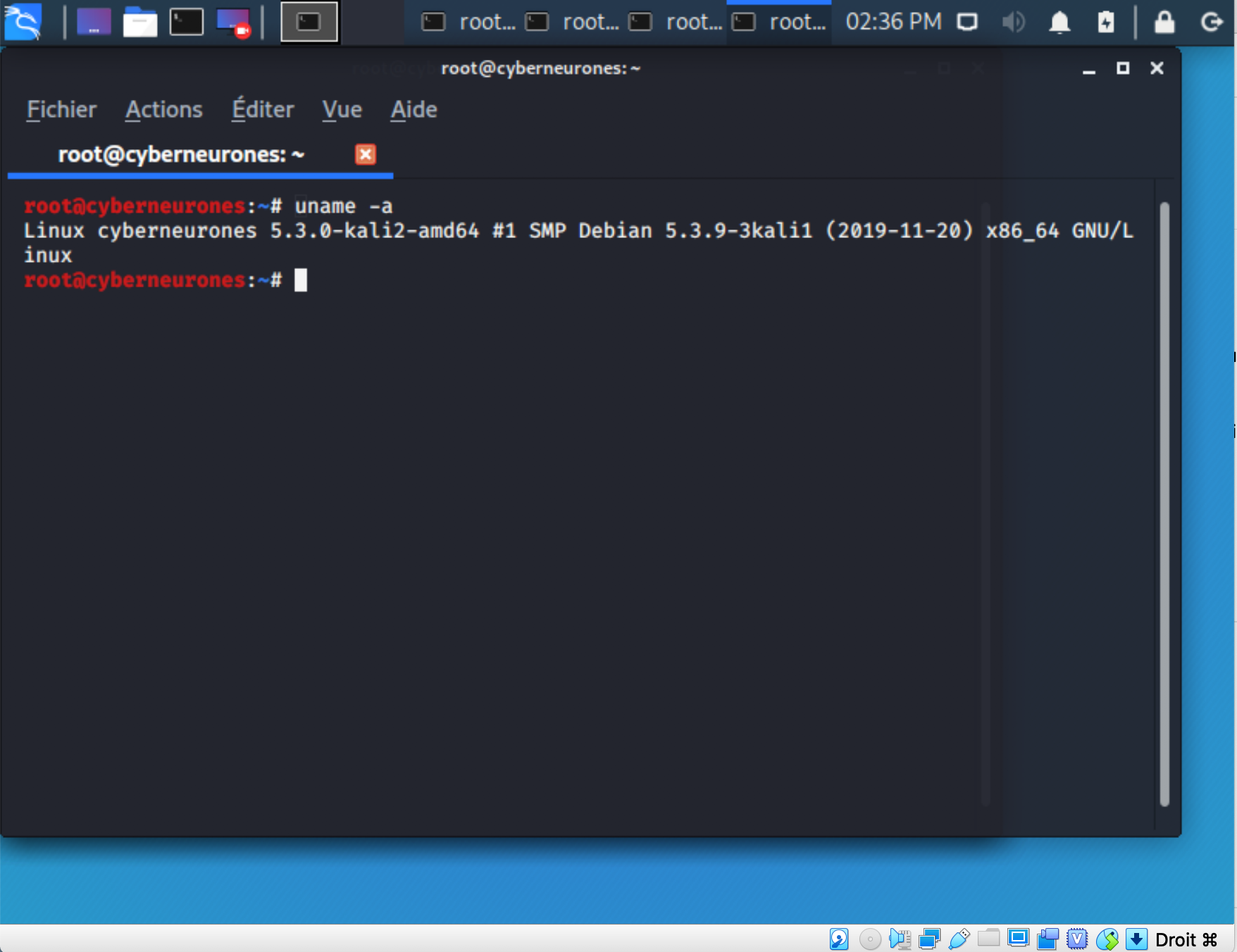
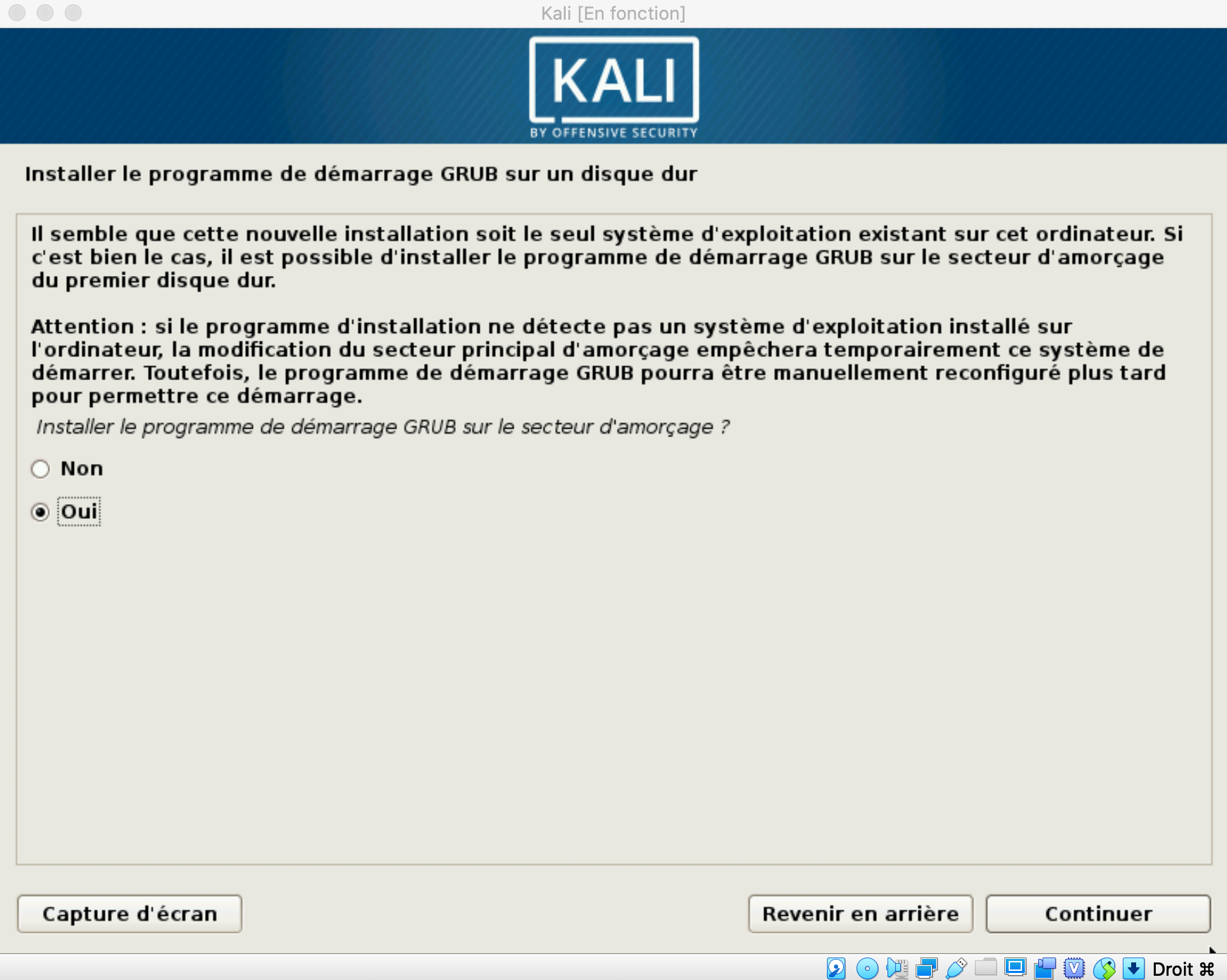
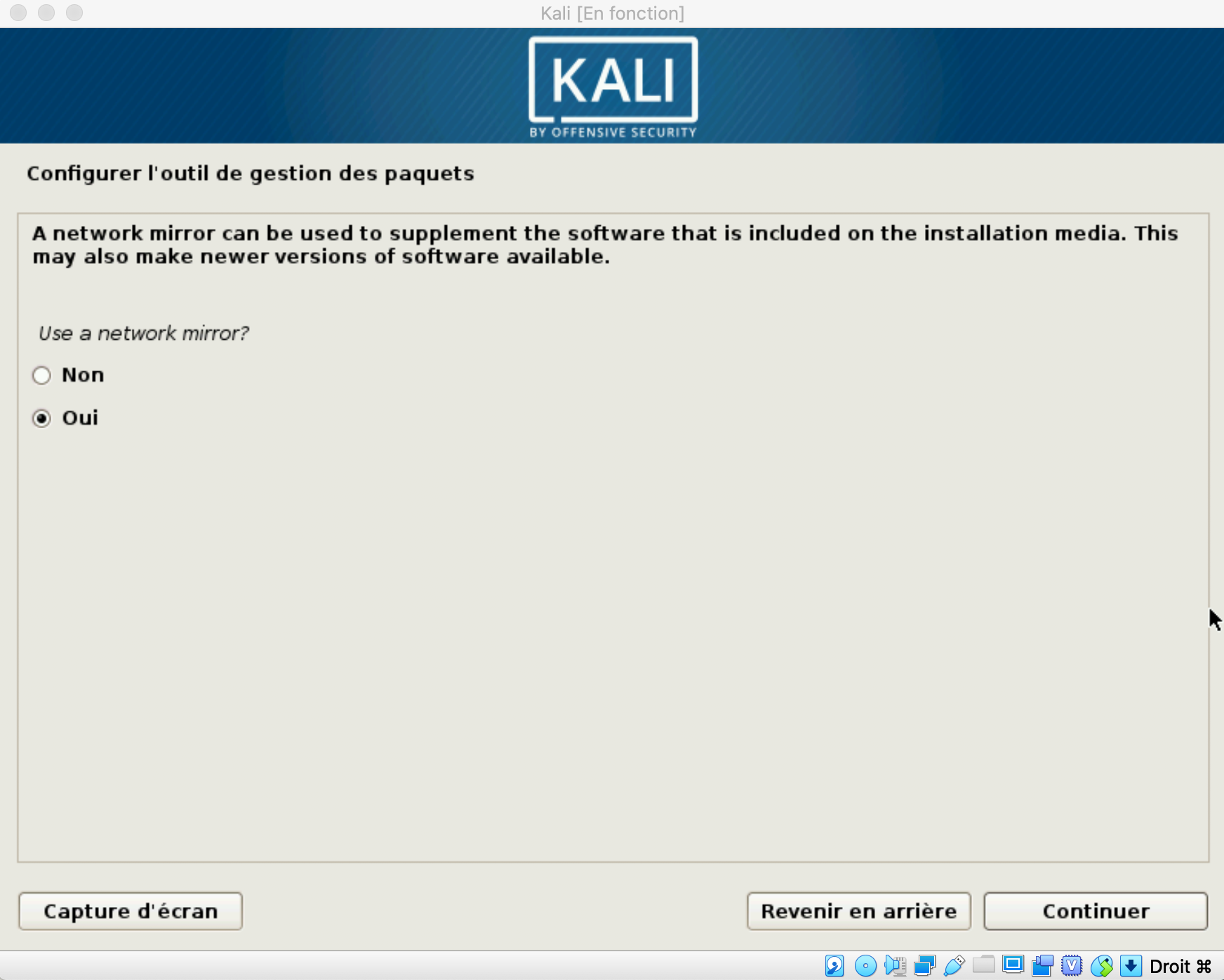
Pour le téléchargement de Kali : http://www.kali.org/downloads/ .
Les étapes en images :
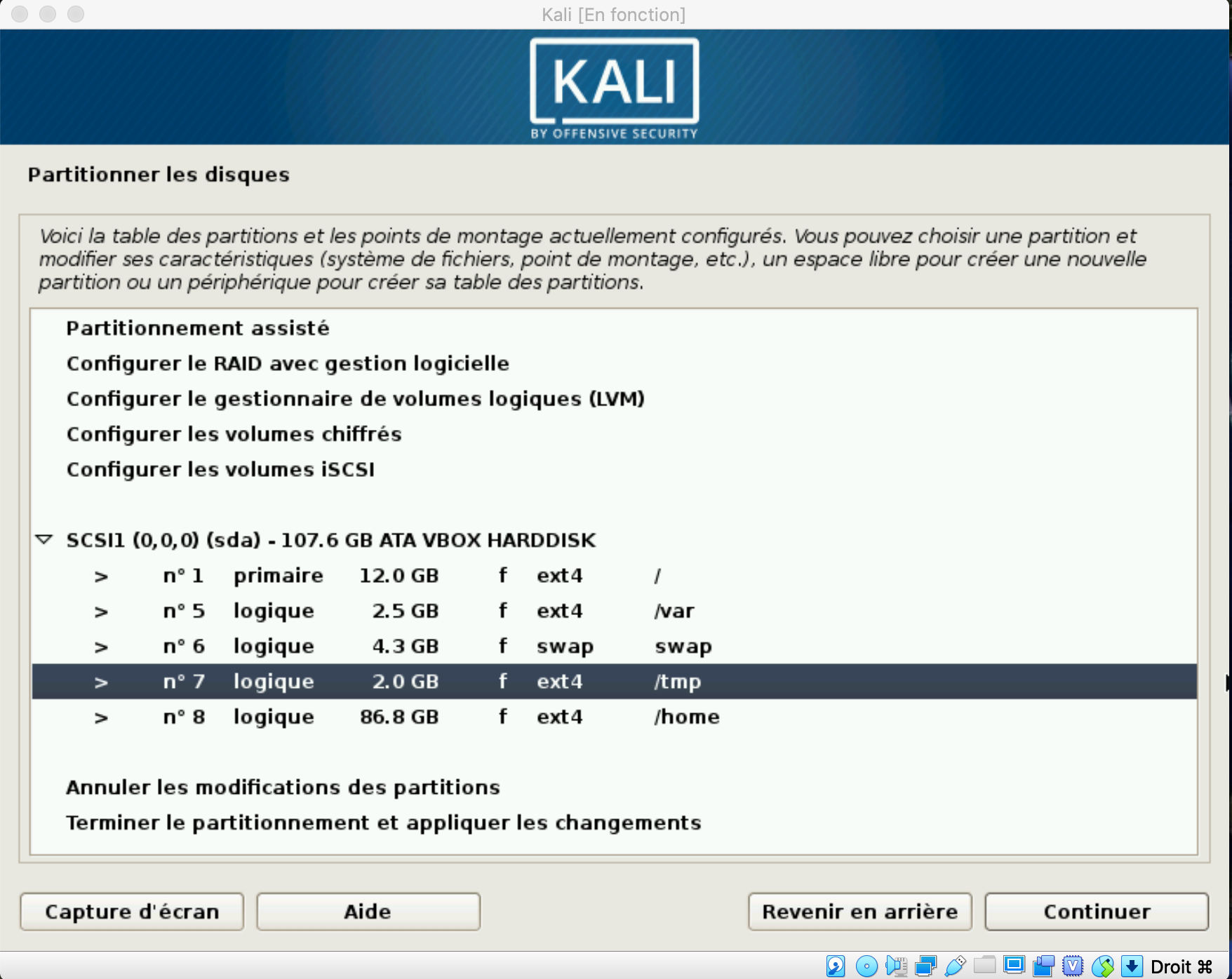
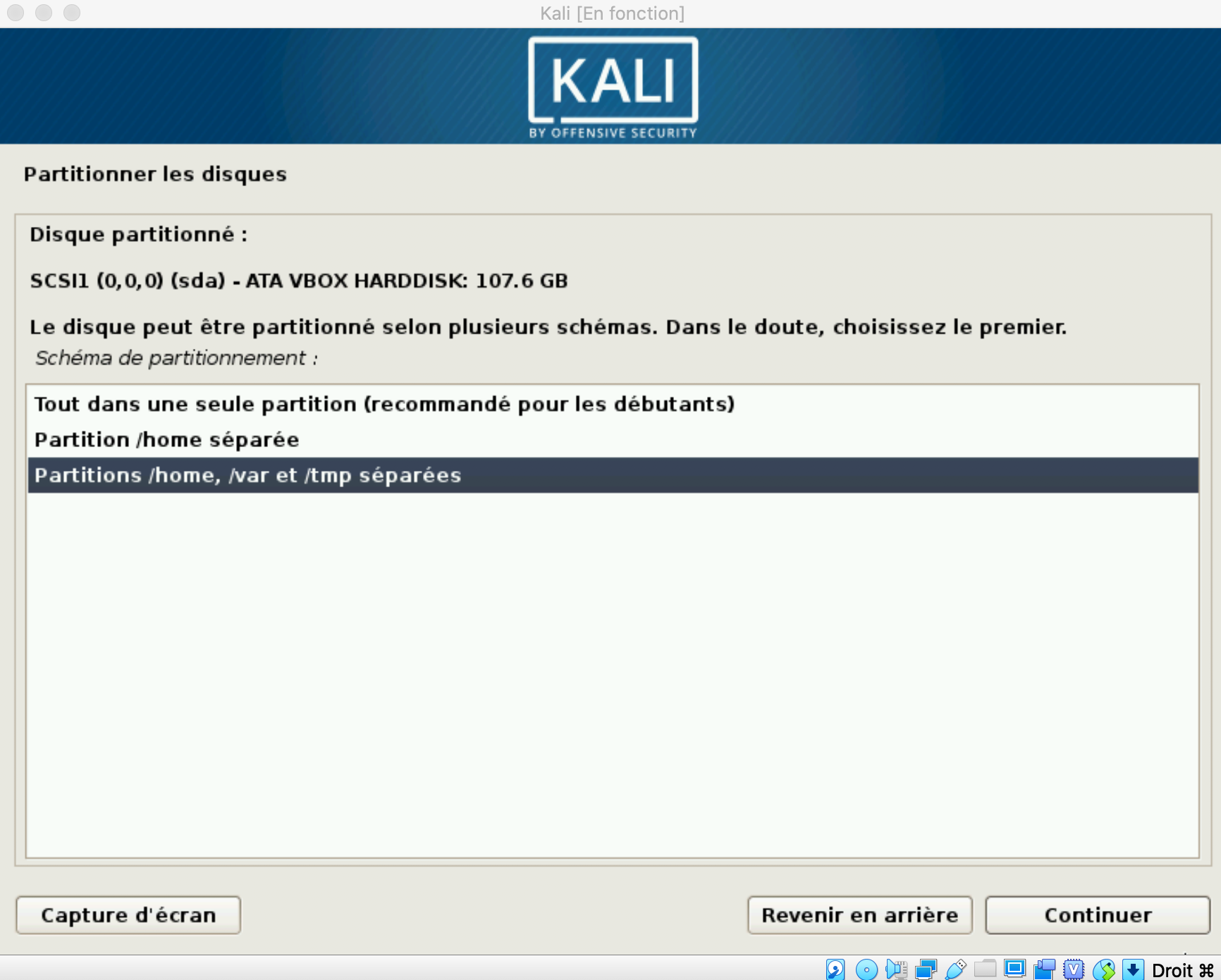
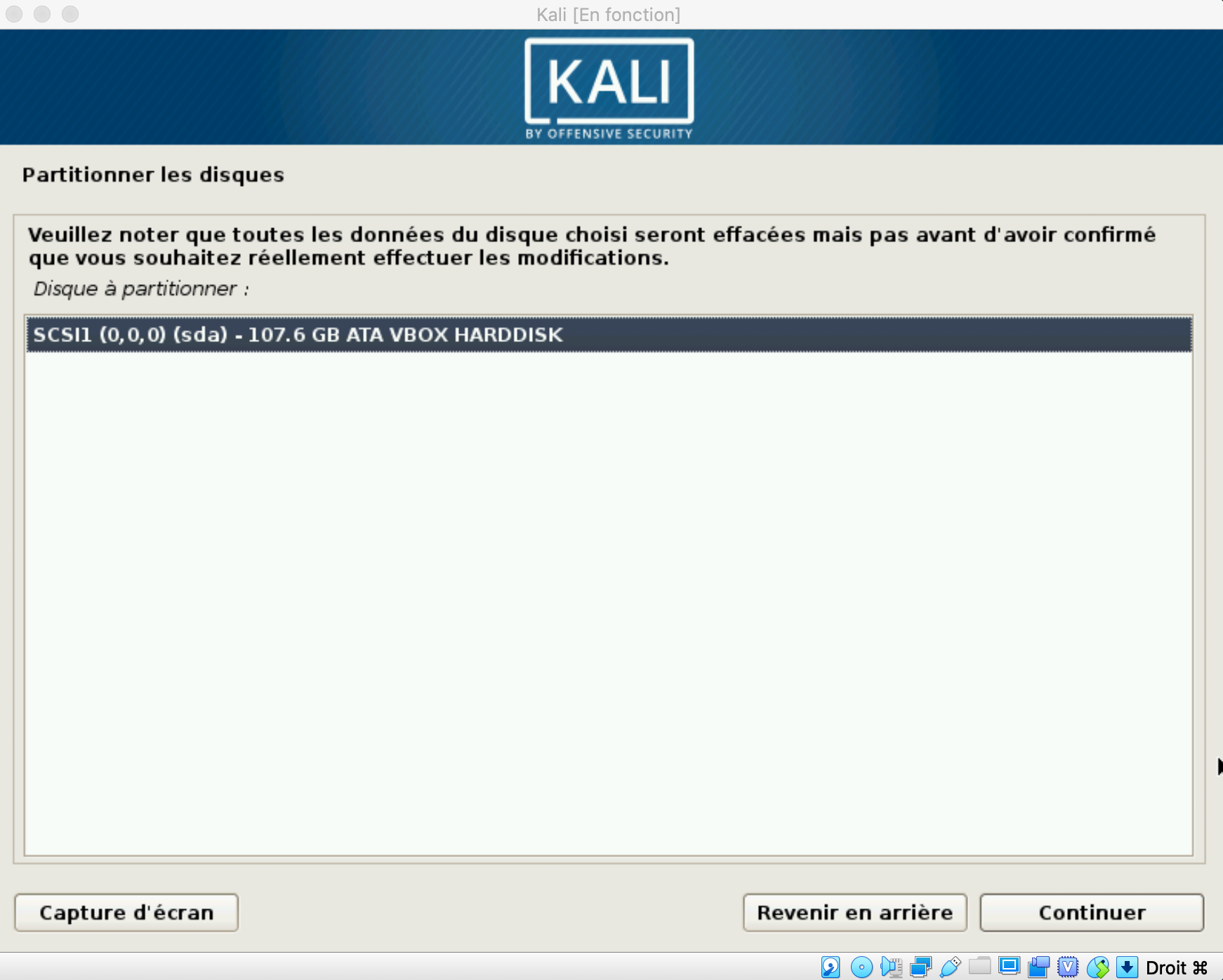
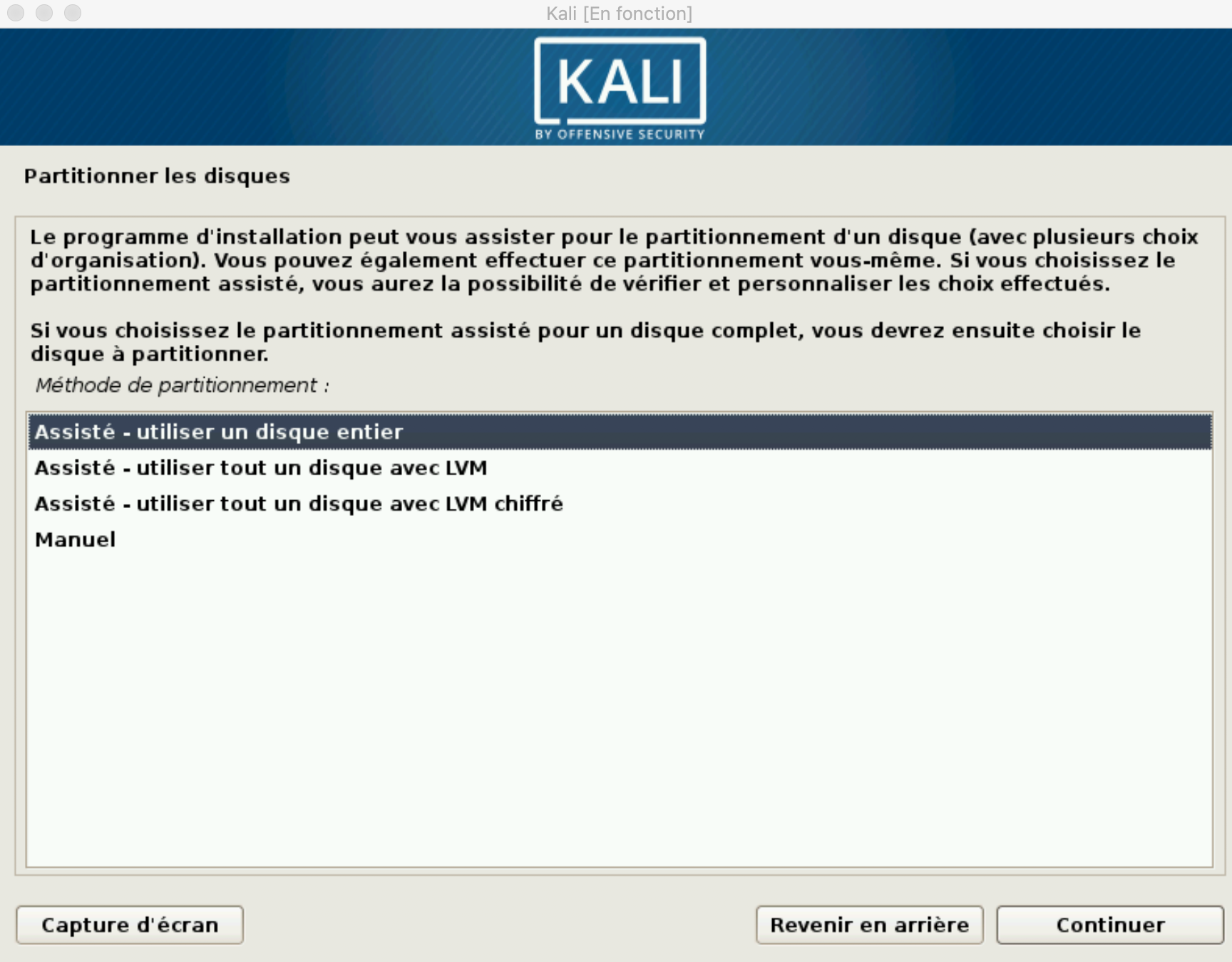
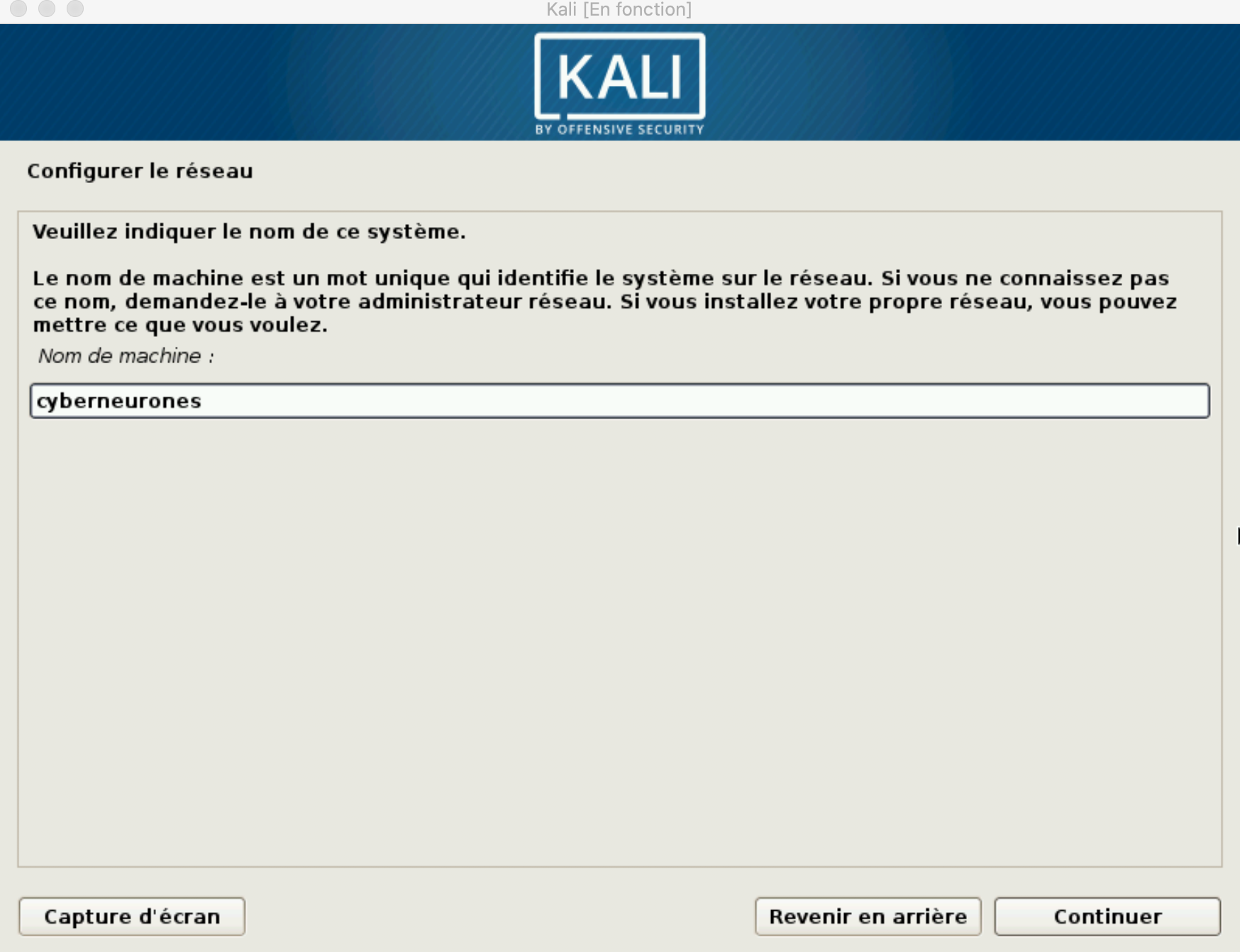
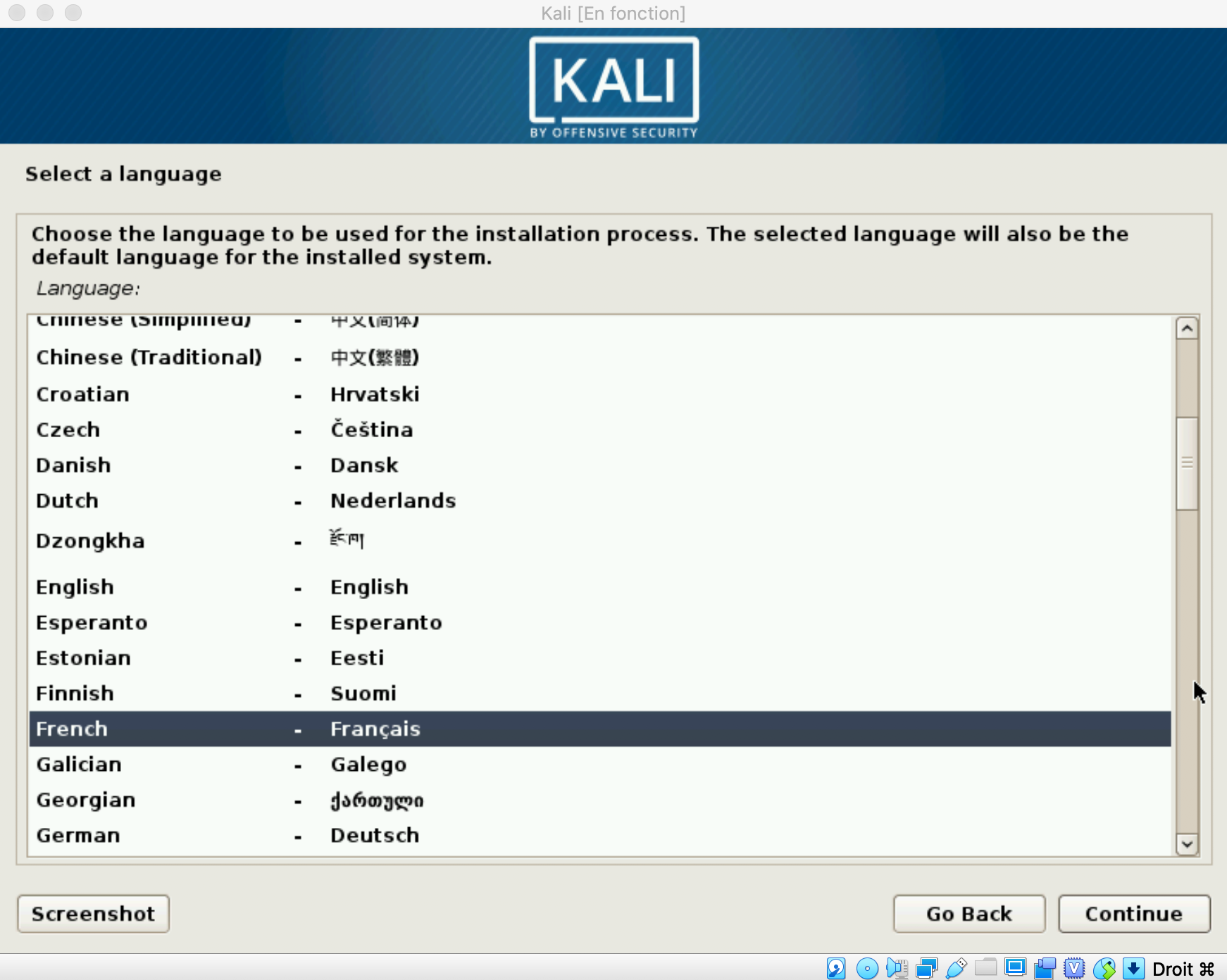
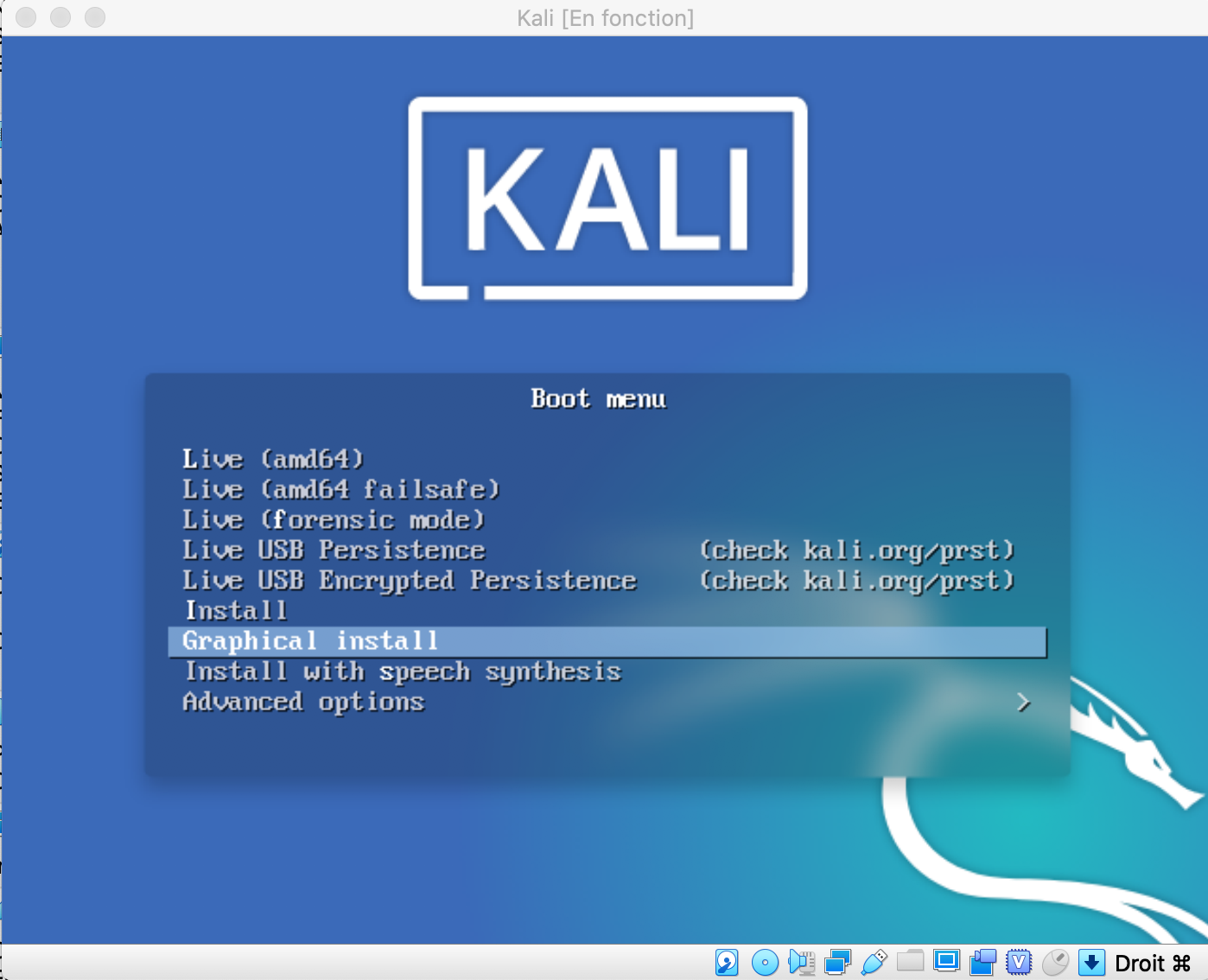
Dans le prochain POST j’explique comment l’utiliser … Patience.
J’ai voulu lancer une installation sur une VM Windows à partir d’un fichier partagé …. mauvaise idée ! Misère. Un crash direct de la VM :
24:12:09.483364 VMMDev: Guest Log: VBOXNP: DLL loaded.
24:12:24.769005 GIM: HyperV: Guest indicates a fatal condition! P0=0x1e P1=0xffffffffc0000005 P2=0xfffff80174c50b20 P3=0x0 P4=0xffffffffffffffff
24:12:24.769028 GIMHv: BugCheck 1e {ffffffffc0000005, fffff80174c50b20, 0, ffffffffffffffff}
24:12:24.769029 KMODE_EXCEPTION_NOT_HANDLED
24:12:24.769029 P1: ffffffffc0000005 - exception code - STATUS_ACCESS_VIOLATION
24:12:24.769029 P2: fffff80174c50b20 - EIP/RIP
24:12:24.769029 P3: 0000000000000000 - Xcpt param #0
24:12:24.769030 P4: ffffffffffffffff - Xcpt param #1
24:12:28.610121 VMMDev: vmmDevHeartbeatFlatlinedTimer: Guest seems to be unresponsive. Last heartbeat received 4 seconds ago
24:12:30.376594 AHCI#0: Reset the HBA
24:12:30.376607 VD#0: Cancelling all active requests
24:12:30.376888 AHCI#0: Port 0 reset
24:12:30.377958 VD#0: Cancelling all active requests
24:12:42.755900 VMMDev: Guest Log: VBoxGuest: BugCheck! P0=0x1e P1=0xffffffffc0000005 P2=0xfffff80174c50b20 P3=0x0 P4=0xffffffffffffffff
24:12:42.756081 GIM: HyperV: Reset initiated through MSR
24:12:42.756090 Changing the VM state from 'RUNNING' to 'RESETTING'
24:12:42.757354 VMMDevNotifyGuest: fAddEvents=0x200 ignored because enmVMState=8
24:12:42.758367 GIM: HyperV: Resetting MMIO2 regions and MSRs
24:12:42.758416 PIT: mode=3 count=0x10000 (65536) - 18.20 Hz (ch=0)
24:12:42.758853 GUI: UISession::sltAdditionsChange: GA state really changed, notifying listeners
24:12:42.758941 GUI: UIMachineViewNormal::adjustGuestScreenSize: Adjust guest-screen size if necessary
24:12:42.758949 GUI: UISession::sltAdditionsChange: GA state change event came, notifying listeners
24:12:42.758952 GUI: UIMachineLogicNormal::sltCheckForRequestedVisualStateType: Requested-state=0, Machine-state=5
24:12:42.758975 GUI: UISession::sltAdditionsChange: GA state change event came, notifying listeners
24:12:42.758979 GUI: UIMachineLogicNormal::sltCheckForRequestedVisualStateType: Requested-state=0, Machine-state=5
24:12:42.759374 Display::i_handleDisplayResize: uScreenId=0 pvVRAM=0000000143cd4000 w=640 h=480 bpp=0 cbLine=0x140 flags=0x0 origin=0,0
24:12:42.768274 AHCI#0: Reset the HBA
24:12:42.768310 VD#0: Cancelling all active requests
24:12:42.768413 HDA: Codec reset
24:12:42.768421 HDA: Reset
24:12:42.769486 TM: Switching TSC mode from 'RealTscOffset' to 'Dynamic'
24:12:42.821163 Changing the VM state from 'RESETTING' to 'RUNNING'
24:12:42.822152 OHCI: root hub reset completed with VINF_SUCCESS
24:12:42.822890 VMMDev: Guest Log: BIOS: VirtualBox 6.0.10
24:12:42.822958 PCI: Setting up resources and interrupts
24:12:42.824793 PIT: mode=2 count=0x10000 (65536) - 18.20 Hz (ch=0)
24:12:42.831987 ERROR [COM]: aRC=VBOX_E_VM_ERROR (0x80bb0003) aIID={ab4164db-c13e-4dab-842d-61ee3f0c1e87} aComponent={DisplayWrap} aText={Could not take a screenshot (VERR_NOT_SUPPORTED)}, preserve=false aResultDetail=-37
J’ai donc fait un copier/coller sur le répertoire local.
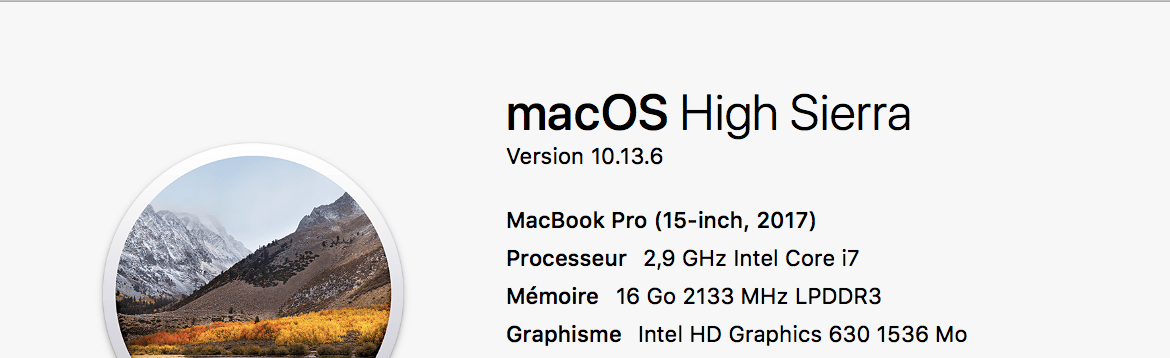
Normalement il faut lancer “GuestAdditions.iso” mais on a ce type d’erreur :

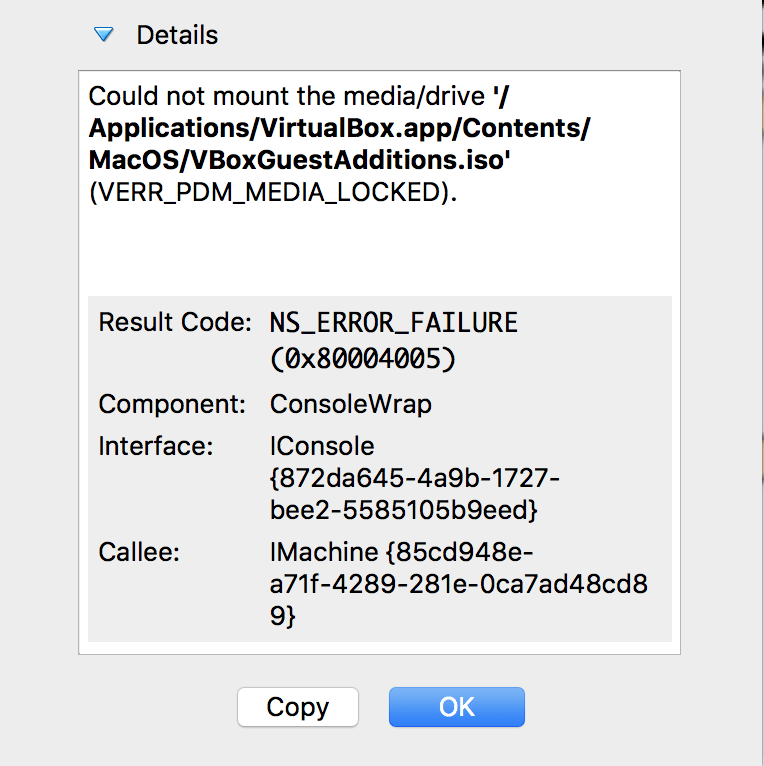
La procédure “normale” est donc :
$ sudo apt-get upgrade
$ sudo apt-get install virtualbox-guest-additions-iso
$ sudo apt-get install virtualbox-guest-utils
Ensuite on monte le cdrom et on lance l’utilitaire ( faire un ls dans /media/ le nom n’est pas forcément cdrom ) :